Showing posts with label Huawei HG8245. Show all posts

Monday, March 14, 2016

Solve the Problem: Setup the Hawei HG8245

Solve the Problem: Setup the Hawei HG8245
Recently my isp porvider upgraded me to fiber (20MB up/down) and I don't know how to set it up to work with Ynblock-us.
Apparently I can not set up the DNS, only the gateway for the router Hawei HG8245.
I have access to al the configuration paramenters, but can't find the DNS entry.

The Solution:
The HG8245 GPON router that you're using is a modem/router combo ( or known as Residential Gateway ). These devices are most likely being controlled by your ISP that may hinder you on entering our DNS on the said device. On this rare occasions we would require you to try to setup our DNS on your computer first to test if it will work. Once we got the DNS working on your computer then that's the time that we can try to setup our DNS on your residential gateway.
As an alternative, you can get a router and have it bridged to your residential gateway. Once you're able to get a new router then you may refer to its user manual on how to change the DNS on it as well as setting your new router on bridge mode.

The steps:
1 Try setting up the computer or device instead and see if you are able to use our service on that device.
2 Find the computer or device you are using and follow the instructions to set it up with our DNS.
3 Do not forget to go to our home page to activate the service on your home network after setting up the DNS on the device.

Telephone: 852-30623083
           Supports@Thunder-link.com            

Tuesday, March 1, 2016

Defrences between HG48245T and HG8245A

The EchoLife HG8245A, an optical network terminal (ONT), is a high-end home gateway in Huawei FTTH solution. By using the GPON technology, ultra-broadband access is provided for home and SOHO users. The HG8245A provides two POTS ports, four GE/FE auto-adapting Ethernet ports and one Wi-Fi port. The HG8245 features high-performance forwarding capabilities to ensure excellent experience with VoIP, Internet and HD video services. Therefore, the HG8245A provides a perfect terminal solution and future-oriented service supporting capabilities for FTTH deployment.

 HG8245A Features


Port: 2POTS+4FE+1USB+WiFi.
Plug-and-play (PnP): Internet, IPTV and VoIP services can be deployed by one click on the NMS and on-site configuration is not required.
Remote diagnosis: Remote fault locating is implemented by the loop-line test of POTS ports, call emulation and PPPoE dialup emulation initiated by the NMS.
Green energy-saving: 25% power consumption is saved with highly integrated system on chipset (SOC) solution, in which, a single chip integrates with PON, voice, gateway and LSW modules.
802.11b/g/n WLAN
H.248 and SIP VoIP
Support IPv6
IPoE or PPPoE Encapsulation mode
Support NAT
IP, MAC, URL Filter
Used to connect to USB storage device USB Port


Applications & Benefit
High-performance forwarding capability provides an optimal terminal solution and future oriented service supporting capabilities for FTTH deployment.
Plug-and-play makes service provisioning easier and more quickly.
Abundant remote diagnosis helps to locate failure more quickly and reduce OPEX.

HG8245T Features


GPON ONT, 4*GE+2*POTS+1*USB, with WiFi
Support IPv4 and IPv6
Support H.248 or SIP
Connector type SC/APC
With external antennal
Coming with B+ SFP Module
Can be configured by OLT or Web or NMS
HG8245T coming with English GUI
Suitable for home and SOHO users
Support 802.11n
Routing function supported
Huawei EchoLife HG8245T optical network terminal (ONT) is a high-end home gateway in Huawei FTTx solution. By using GPON technology, ultra-broadband access is provided for home and SOHO users. The HG8245T provides four GE Ethernet ports, two POTS ports and one USB Port, HG8245T has Wi-Fi function, support 802.11b/g/n.
specificationHG8245AHG8245T
Dimentions176mm*138.5mm*28mm195mm*155mm*34mm
weightabout 1kgabout 1kg
woriking environmentOperating temperature: 0ºC to 40ºCOperating temperature: 0ºC to 40ºC
Environment humidity: 5% to 95% (noncondensing)Environment humidity: 5% to 95% (noncondensing)
power consumptionStatic power: 7.45 W Maximum power consumption: 12 W10 W
power specificationsPower adapter input: 100 to 240 V AC, 50–60 HzPower adapter input: 100 to 240 V AC, 50–60 Hz
System power supply: 11–14 VDC, 1 ASystem power supply: 11–14 VDC, 2 A
WLAN802.11b/g/n802.11b/g/n
voIPH.248 and SIPH.248 or SIP
Support IPv6YesYes
Encapsulation modeIPoE or PPPoEIPoE or PPPoE
Support NATYesYes
SecurityIP FilterIP Filter
MAC FilterSMAC Filter
URL FilterURL Filter
USB portUsed to connect to USB storage deviceUsed to connect to USB storage device

Monday, February 29, 2016

How to Register Huawei ONT in Huawei OLT Part 2:

How to Register Huawei ONT in Huawei OLT:
Step-4:Now we ADD ONT:
interface gpon 0/0
ont add 6 sn-auth 485754439BDF3102 omci ont-lineprofile-id 500 ont srvprofile-id 500 desc"Any-description"
//here 6 sn-auth = pon port,which we got from discover list,F/S/P:0/0/6]
Look like bellow format in OLT:


Step-5:Now we ADD native Vlan to the ONT Port
interface gpon 0/0
ont port native-vlan 6 0 eth 1 vlan 2816  //PortID:6,ONTID:0,eth
1=ont's port no.
Look like bellow fomat in OLT:
Huawei OLT(config)#interface gpon 0/0
Huawei OLT(config-if-gpon-0/0)#ont port native-vlan 6 0 eth 1 vlan 2816
{<cr>lpriorit<K>}:
Command:
ont port native-vlan 6 0 eth 1 vlan 2816
Huawei OLT(config-if-gpon-0/0)#
#################################################################################################
Step-6:Vlan declare & pass it Uplink interface:
Huawei OLT(config)#vlan 2816 smart
Huawei OLT(config)#port vlan 2816 0/2 0
#################################################################################################
Step-7:Now we create Service port for that link:
service-port 500 vlan 2816 gpon 0/0/6 ont 0 gemport 126 multi-service user-vlan 2816 tag-transform translate inbound traffic-table index 3 outbound traffic-table index 3
Look like bellow format in OLT:
Huawei OLT(config)#service-port 500 vlan 2816 gpon 0/0/6 ont 0 gemport 126 multi-service user-vlan 2816 tag-transform translate inbound traffic-table index 3 outbound traffic-table index 3
Huawei OLT(config)#
#################################################################################################
finally we complete that ragistration,Now we check that link by some command.......
Huawei OLT(config)#display service-port 500


More related:

Huawei MA5620 Series Equipment Port Mirror Capture

How to Register Huawei ONT in Huawei OLT Part 1:

Today i will show how to register Huawei ONT in a Huawe OLT.Here i use Huawei MA5608T series OLT & EchoLife:HG851 ONT device.So let's start our configuration part.....
Step-1:At first we search ONT serial number in our OLT discover list option by bellow command:
enable
config t
display ont autofind all
Look like bellow format in OLT:

Step-2:Now need to create a Service profile:
ont-srvprofile gpon profile-id 500 profile-name"Any-Name"  //here 500 is your profile id
ont-port post 4 eth 4  //(4=pots RJ11 port,4=eth port)
port vlan eth 1 2816  //2816= vlan
commt
Look like bellow format in OLT:

Step-3:now we create Line profile:
config
ont-lineprofile gpon profile-id 500 profile-name"Any-Name"
tcont 4 dba-profile-id 11    //11=dba profile
gem add 126 eth tcont 4     //gem=126,tcont=4
gem mapping 126 0 vlan 2816  //gem=126 & 0=mapping index
commit
Look like bellow format in OLT:

More related:

Huawei MA5620 Series Equipment Port Mirror Capture

Thursday, February 25, 2016

Huawei GPON ONT HG8245 FAQ

Q: What is the difference between HG8245 and HG8245A and HG8245T?
A: You can visit the below rink to know more...

Q: What is the difference between GPON HG8245 and ONT HG8240ONT HG8240F?
A: The main difference is HG8245 comes with WiFi, HG8240/HG8240F not.

Q: Do you have HG8245 with C+ Module?
A: No, we only have some HG8010H NOT with C+ module.

Q: Do you have 4*GE version HG8245?
A: No, there is only 4*FE version, actually the GPON speed 2.5Gbps after splitting, even just 1:32, average each user can only get 78Mbps, also on the customer side 100Mbps is enough for normal use. For certain customer who really need super high speed internet, you may consider to use HG8010H which has 1*GE, or in some commercial areas, using Huawei MDU, like MA5626, MA5612 which has multiple GE ports.

Q: Do you have documentation of HG8245?
A: Yes, you may contact Thunder-link sales person.

Q: My HG8245T is with SC/APC, Huanetowrk HG8245 is SC/UPC, do I have any problems?
A: No, it is going to be fine, just make sure you use the cable with SC/UPC connector, Thunder-link also offers SC/UPC connector.

Q: Do I need to have 2 cable for HG8245, one in one out?
A: No, one cable is enough, the GPON is using WDM technology, which only
require one cable.

Q: Can I use HG8245 with other brand OLT?
A: Thunder-link not suggest, as the understanding between different vendor on TR069/OMCI may different.

Q: Does HG8245 support routing function?
A: Yes.

Q: Does HG8245 support battery back?
A: No.
More related:

Situation When Carry 10GE Traffic On OSN3500

Be Ware of Software Watchdog Reset on the System Control Board of OptiX OSN Equipment

Wednesday, February 17, 2016

How to set up Wi-Fi on GPON Huawei HG8245

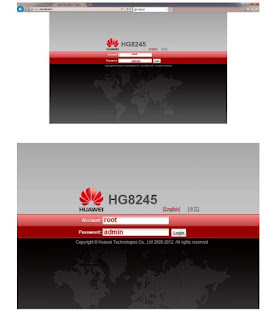
1. Connect Router by using IP 192.168.100.1
Account = root
Password = admin

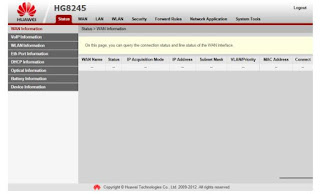
2. On the first page, select WLAN


3. Basic Configuration

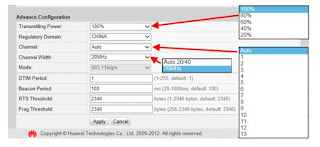
4. Advance Configuration

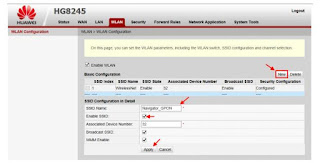
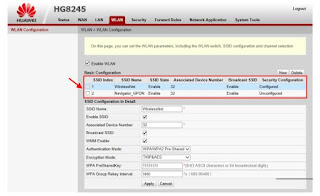
5. SSID can be created more than 1 SSID by clicking at “NEW” a. Enter SSID Name b. Place a check mark at Enable SSID c. Click Apply

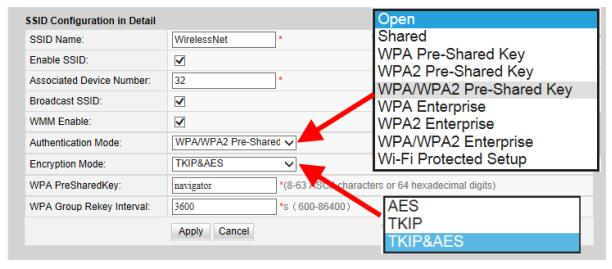
6. SSID parameters can be set

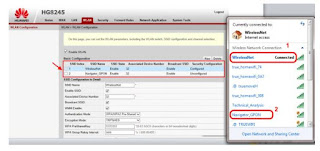
7. Test SSID signal on 2 AP which have been set

For more information on the HG8245 series optical modem, please visit Thunder-link.com or email to Supports@Thunder-link.com. We will provide you with the best technical support and service.

Monday, February 15, 2016

How to crack HG8245/HG8245C series optical modem?

About crack HG8245/HG8245C optical modem
1.Turn on the computer telnet service.
2.Turn on the optical modem telnet service.
Under normal circumstances, the optical modem is the default account password:
telecomadmin   
nE7jA%5m 
Install the Firefox browser and webdeveloper plug-in, login after the optical modem, in the Security page ont access with webdeveloper plug-in shows elements that are hidden, tick allow LAN PC side through telnet access ", click on the application, you can open optical modem telnet.  
To management and equipment management USB backup configuration to first insert U disk backup, then the USB fast recovery enable tick lest after accidentally reset lead to restore the settings cannot be changed back
3.acquisition vlan ID
telnet 192.168.1.1   root   admin   

get port config portid 1
The value of PortVid corresponding to vland ID, PortPri corresponds to 802.1p, please remember these two values.
4.Modify the number of connections
telnet 192.168.1.1 
root 
admin 
shell 
cd /mnt/jffs2 

cp hw_ctree.xml wy.xml 
cp wy.xml wy1.xml.gz 
aescrypt2 1 wy1.xml.gz tmp 
gzip -d wy1.xml.gz 
vi wy1.xml
/TotalTerminalNumber 
Press I to enter the edit mode, according to the back of the grid to delete, modify, press ESC to exit edit mode.
:wq 
gzip wy1.xml 

aescrypt2 0 wy1.xml.gz tmp cp -f wy2.xml.gz hw_ctree.xml 
Please restart the router.
5.HUAWEI to restore the original factory interface, modify the name of the wireless network.
HG8245C can not modify the name of the wireless network in the telecommunications interface, you must first restore the original HUAWEI factory interface.
telnet 192.168.1.1 root admin shell 

cd /mnt/jffs2 vi hw_boardinfo
The value of the 0x0000001a and 0x0000001b are changed to COMMON, and then you can modify the wireless network name.
6.Configure Internet access mode, Bridge to modify the routing.
Note that when modifying routing mode, VLAN ID and 802.1p to value obtained using the third step.

More related:

The Issue that the MA5600T H802GPBD Board Resets Repeatedly